Key takeaway
Portal ASAN menolak hasil pindai paspor yang buram dan terlalu besar setiap hari. Berikut adalah spesifikasi resolusi, format, dan ukuran yang tepat agar lolos pada percobaan pertama.
Why the ASAN Portal Rejects Passport Scans
Most Azerbaijan visa rejections caused by documents do not stem from missing paperwork. They stem from the wrong kind of paperwork. The ASAN visa portal runs automated validation on every file you upload. A blurry phone photo or an oversized PDF will stop your submission before a human reviewer ever sees it.
The good news: this is entirely preventable. The portal's requirements are explicit, and they are consistent across standard, urgent, and super-fast processing tiers. Understanding the exact resolution, format, and file-size rules before you start means you submit once, correctly, and keep your application moving. You can begin your Azerbaijan visa application at azerbaijan-visa.com/order-now.
This guide covers every technical specification the ASAN portal checks on your passport scan — and what to do if something goes wrong.
Resolution and DPI: The Most Ignored Setting
DPI stands for dots per inch. It tells the portal's software how sharp your image is. Most people have never checked this setting, which is why it causes the majority of rejections.
The ASAN portal requires a minimum of 300 DPI for passport scans. If you are scanning on an office printer or an all-in-one device, open the scan settings before you begin. Set the output to 300 DPI or higher. Many devices default to 96 DPI, which produces an image that looks fine on a screen but is mathematically too low-quality for the portal's validation engine.
Smartphone cameras present a separate problem. Even a 12-megapixel phone produces images at approximately 72–96 DPI unless you use a dedicated scanning app that exports at print resolution. Apps such as Adobe Scan, Microsoft Office Lens, and CamScanner can export at 300 DPI if you select the correct output setting. Always check the export settings before saving.
If you are uploading a pre-existing digital photo instead of a scan, you will need to confirm the image meets the 300 DPI equivalent at the standard passport photo dimensions of 45 mm × 35 mm. This translates to roughly 531 × 413 pixels at 300 DPI — smaller than most smartphone defaults, but easily achievable by cropping to the biographical page only.
File Format and Type: What the Portal Actually Accepts
The ASAN portal accepts two file types for passport scans: JPEG (.jpg) and PNG (.png). That is the complete list. If your scanner saves to PDF by default, you must convert it before uploading. RTF, TIFF, WEBP, and HEIC formats are not supported and will block submission.
Converting a PDF to JPEG is straightforward. Most operating systems let you open the PDF in a preview app and export it as an image. Dedicated free tools such as Smallpdf, ILovePDF, or your scanner's native software can handle the conversion in seconds. Just make sure the output retains 300 DPI — some converters compress aggressively and drop the resolution in the process.
File naming matters less than the content, but avoid special characters in the filename. Use something simple like passport_scan.jpg. Spaces and symbols rarely cause problems, but simple ASCII names are safest.
File Size: The 5 MB Ceiling
Beyond format, the portal enforces a strict 5 MB file size limit for uploaded documents. This is where oversized scans from high-resolution flatbed scanners become a problem. A 600 DPI colour scan of a full A4 page can easily exceed 20–30 MB.
Here is how to stay under the limit:
- Scan at 300 DPI — this alone keeps most single-page passport scans well below 5 MB.
- Crop to the biographical page only — scanning the entire open passport adds unnecessary data.
- Save as a compressed JPEG — set the quality to 80–90% in your export settings. This reduces file size dramatically with minimal visible loss.
- Use PNG only if JPEG produces visible artefacts — PNG files are typically larger than equivalent JPEGs.
If your file is still over 5 MB after cropping and compressing, use a free image optimizer tool to reduce it further before uploading. Most optimizers let you preview the result before saving, so you can confirm the text remains legible.
Common Mistakes That Cause Rejections
Even applicants who understand the specs make these errors repeatedly. Avoid them:
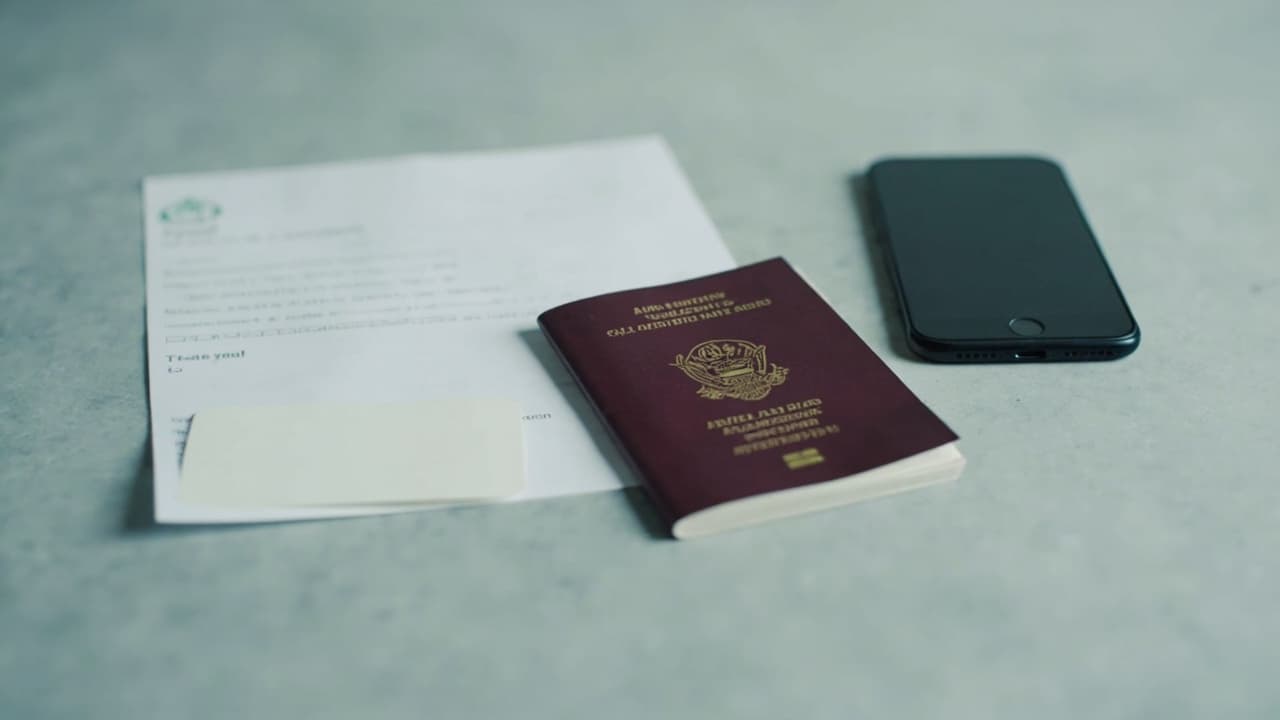
1. Uploading a photo of the passport instead of a scan. The ASAN portal expects a flat, evenly lit, edge-to-edge image of the biographical page. A photo taken at an angle, with glare, or with the cover visible triggers automated rejection.
2. Including fingers, passport covers, or background objects in the frame. The scan must show only the passport page. Fingers holding the passport, a cover partially in shot, or a busy background confuse the automated data extraction and may flag your application for manual review unnecessarily.
3. Using a scan older than six months. The portal expects a current scan. If your passport has been renewed or has significant new stamps since your last scan, use a fresh one.
4. Submitting the wrong document type. The portal is specifically asking for your passport's biographical page. A boarding pass, a previous visa, or a national ID card will not satisfy this field, regardless of how well-lit the scan is.
5. Failing to sign the form before scanning. An unsigned application form uploaded as a separate document will cause a hold. Check that every required field in the form itself is complete before you begin uploading documents.
How to Fix a Rejected Upload
If you see a rejection message after uploading your passport scan, do not panic and do not immediately resubmit the identical file. The portal keeps your application data active — you do not need to restart from scratch.
First, note the exact error message. Most rejections will specify whether the issue is resolution, format, or file size. Cross-reference against the sections above and correct the specific problem.
Second, if the portal says your scan is unreadable or contains insufficient data, try rescanning at 400 DPI and re-exporting as a high-quality JPEG. A cleaner, sharper file resolves most readability rejections.
Third, if you have made multiple failed attempts and the portal appears to be locked, wait 15–30 minutes before retrying. Repeated failed uploads can trigger a temporary session lock as a security measure. During this time, prepare your corrected file so you are ready to upload immediately when the session reopens.
If you continue to encounter issues after correcting your file, contact the ASAN support team through the portal's help function. Have your application reference number ready — you can find this in the confirmation email sent after you started your Azerbaijan visa application.
FAQ
Q1. Can I use a passport photo instead of a passport scan on the ASAN portal? No. The ASAN visa portal requires a scan of the passport's biographical data page, not a portrait-style passport photo. The portal's automated system reads the MRZ (Machine Readable Zone) at the bottom of the page, which is only present on the biographical page.
Q2. My scan is clear on my screen but the portal says it is unreadable. What is happening? The portal reads your image at a fixed display resolution. If your scan is saved at 96 DPI — common with default scanner settings — it may look sharp but fails validation. Rescan at 300 DPI or higher and re-export the file before uploading again.
Q3. Is a PDF of my passport acceptable? No. The ASAN portal only accepts JPEG and PNG files for passport document uploads. Convert your PDF to a JPEG image first using any free PDF-to-image converter, then upload the resulting image file.
Q4. Does the passport need to be signed before scanning? Yes. The application form requires your signature. An unsigned form uploaded as a supporting document will trigger a rejection. Sign the form first, then scan the completed page.
Q5. How long does it take for the portal to process my upload? Most uploads are validated within a few seconds. If the portal flags your file for manual review — which can happen with older passports or non-standard formatting — the additional review typically adds 1–2 business days to your overall processing timeline.
Q6. Can I re-upload a corrected scan without restarting my application? Yes. The ASAN portal preserves your application session. Once you correct the file and upload it again, the new scan replaces the rejected one. You do not need to fill in the form fields again.
Key Takeaways
- Always use 300 DPI or higher when scanning your passport — 96 DPI smartphone photos commonly fail ASAN's automated checks.
- Save your scan as a JPEG or PNG file — PDFs are not accepted by the ASAN portal for passport document uploads.
- Keep your file under 5 MB; files above this threshold are rejected and block submission entirely.
- Recrop the scan to show only the biographical page — no fingers, covers, or shadows should appear in the frame.
- If your scan is rejected, re-upload the corrected file without resubmitting the full form — your session data is preserved.
Azerbaijan Visa Editorial
Writes about Azerbaijan eVisa requirements, traveler tips, and fastest processing routes for visa applicants.
Ready to apply?
Start your Azerbaijan eVisa application now.